
1. Introduction.
In Cool Tabs, you can customize how the answers in your quizzes, questionnaires, and surveys are displayed by adjusting the number of columns. This functionality allows you to tailor the design for each device type (desktop, tablet, and mobile), enhancing the user experience and optimizing the presentation of your campaigns.
2. Step by step.
1. Access your campaign’s editing page
Log in to Cool Tabs and select the campaign you want to edit.
2. Go to the Quiz section
Once inside the campaign editor, select the question where you want to customize the answer display.
3. Open the Design tab
In the question settings, open the "Design" tab.
4. Set the number of columns
In the "Show the answers in columns according to the device" section, specify the number of columns for each device type: desktop, tablet, and mobile.
You can choose between 1 and 4 columns.
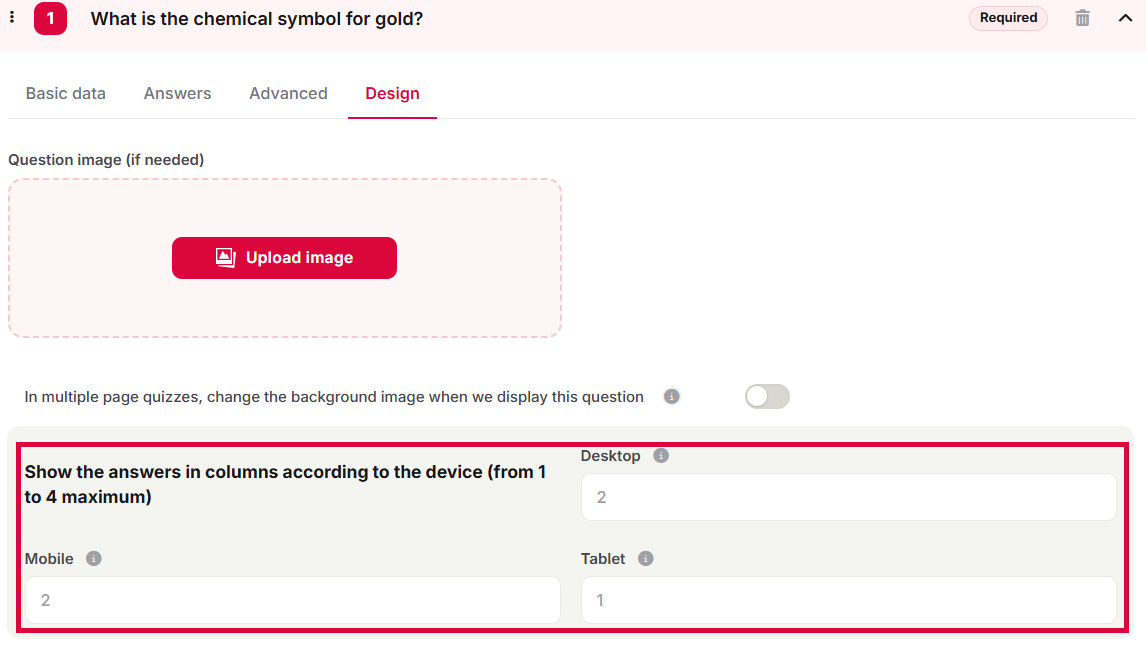
5. Save your changes
After configuring the values for each device, save your changes.
3. Other specifications.
Default values: If no changes are made, answers will be displayed in 2 columns for desktop and tablet, and in 1 column for mobile by default.
If you need further assistance, feel free to reach out to us at help@cool-tabs.com.