
1. Introduction.
Anonymous surveys are useful when you want to collect opinions without asking users to identify themselves or fill in a data form. However, if the survey is part of an email campaign, you may still want to know who has already responded, for example, to send a reminder only to those who haven't.
In this tutorial we explain how to set up an anonymous survey and obtain participants' email addresses via UTM parameters, without asking them to fill in any field.
2. Step by step.
2.1. Create your campaign.
First, create your campaign and configure the basic settings. If it's your first time creating a campaign in Cool Tabs, check out: How to get started creating a campaign: basic settings.
Keep in mind that, for the survey to be anonymous, you must not request any data in the form or activate any type of registration.
You can also start from one of our public templates. We have several survey templates available:
2.2. How to track an anonymous survey.
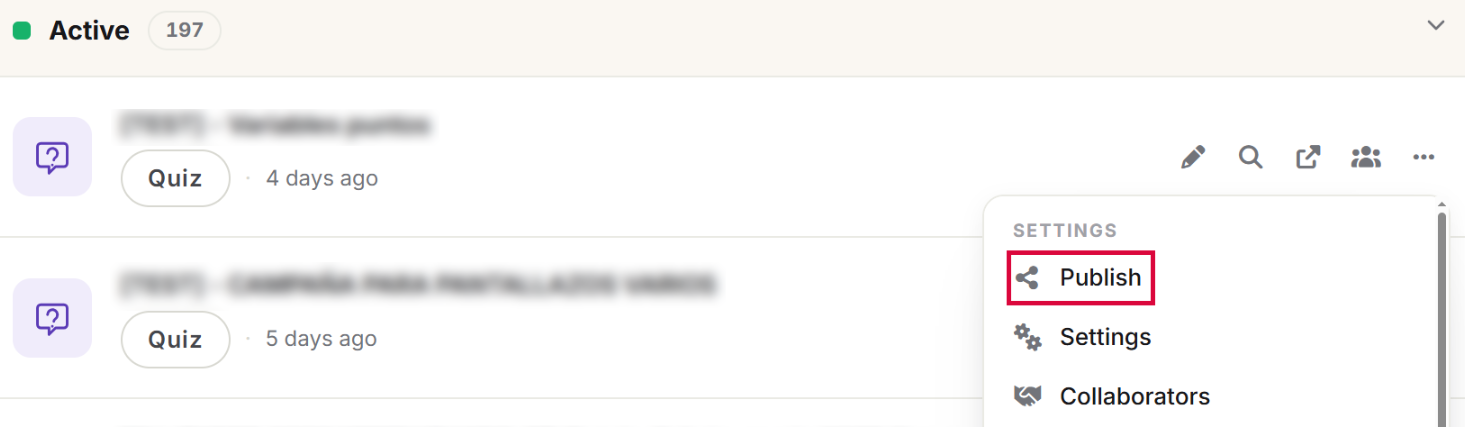
When publishing your survey, use the unique URL generated when the campaign was created. You'll find it in the 'Publish' section: How to access the unique URL of the campaign.
2.2.1. Sending through Cool Tabs.
Once you have the survey URL, add UTM parameters to track traffic to the campaign.
Important: add the variable {{{email}}} to the utm_campaign parameter. This way, when a user opens the survey from the email sent via Cool Tabs, you'll be able to capture their email address. Example:
https://www.your-promos.com/pub/jDL6rdd?utm_campaign={{{email}}}&utm_medium=invitation
The email containing the link must be sent using our email tool for the tracking to work. You can check these tutorials:
- How to send an email to your campaign participants.
- How to send an email to users outside your campaign.
In your email template, include the text you want to show alongside the survey link tagged with UTMs. Below you can see an example:
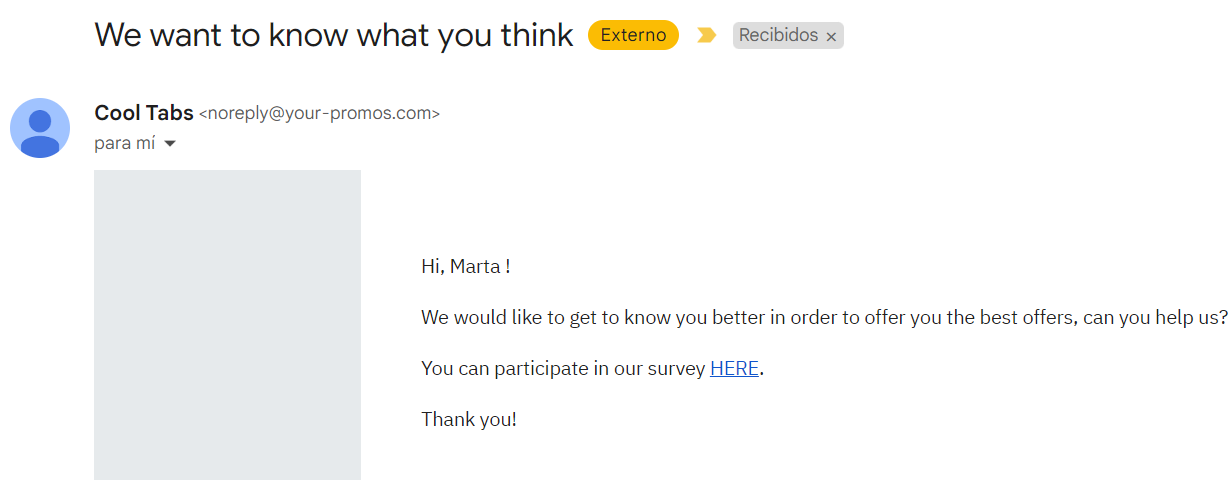
The user's email can only be captured if they open the survey URL from the email you sent them.
2.2.2. Sending through an external tool.
You can also send the survey using an external tool (Gmail, Outlook, or any other email platform). In this case, instead of using the {{{email}}} variable, include the user's email address directly in the utm_campaign parameter of the URL. Example:
https://www.your-promos.com/pub/jDL6rdd?utm_campaign=user@example.com&utm_medium=invitation
If you're sending the same email to multiple users, use the personalization variable from your external email platform to insert each recipient's email address in the utm_campaign parameter.
2.3. How to get the user's email.
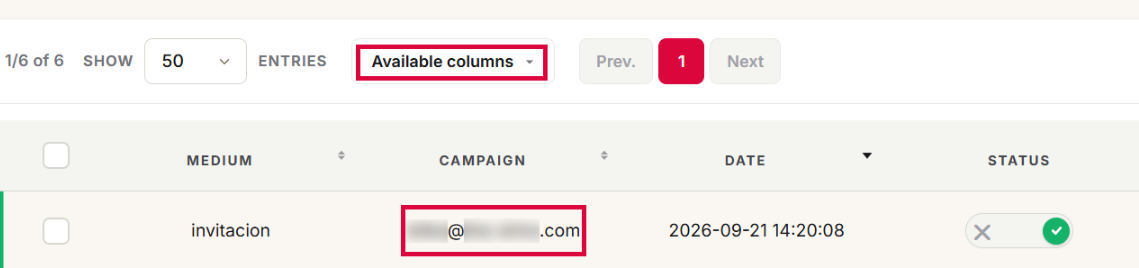
Once you've sent the email and users start responding, you can see the results in the participant list. Go to the 'Leads' section.

In the participant list, click 'Available columns' and enable the 'Campaign' option. The emails of users who have answered the survey will appear in that column.
3. Other specifications.
This feature is available on the Gold and Diamond plans.
If you have any questions, contact us at help@cool-tabs.com.
4. Related content.
How to access the unique URL of my campaign.
How to create a link campaign.
How to send an email to your campaign participants.
How to send an email to users outside your campaign.