
1. Introduction.
When configuring the data form, you can ask the participant to verify their email or phone number. This anti-fraud measure prevents users from participating with fake or unused data.
It works as follows. After completing the form, the participant receives a validation message. Only once they confirm their email or phone number will their participation be considered valid.
By default, verification is done by sending a code to the email address or phone number provided in the form. There is also the option to send a verification link instead of the code.
In this tutorial, we explain how to activate and configure verification, both by code and by link, for email and phone.
2. Step by step.
2.1. Enable email validation.
- Go to the Entry form section of your campaign.
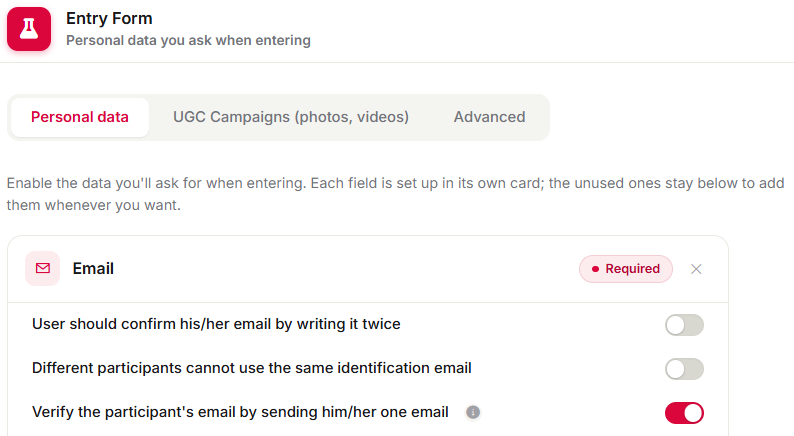
- Check: Email and Required field.
- Select the verification method:
- Code: the participant receives an email with a code they must enter.
- Link: the participant receives a URL they must click.
Until they confirm their email, the participation will not be considered valid.
Other considerations
When you activate email verification, you will find additional options:
- Share the list of validated emails. This option allows emails already validated in other campaigns to be automatically recognized as valid. If you do not want this to happen and prefer that users always receive the verification email, leave this option disabled.
- Social network email (Google, Facebook, Yahoo, Microsoft, etc.) When a user registers via a social network, their email is considered valid and the validation email will not be sent. If they change their email in the form, the verification email will be sent accordingly.
2.1.1. Message when the email is pending validation.
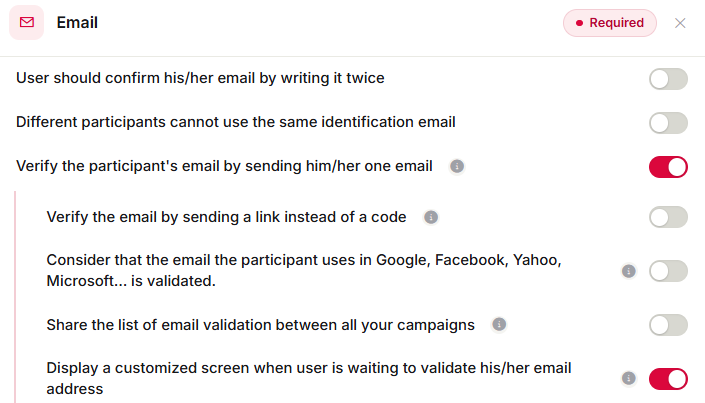
By default, the participant sees a message informing them that their email is pending validation.
Below, you can see the default message.

You can customize it by enabling 'Content for users who need to validate their email' and adding your message in the text editor.
From the list of participations, you can check the status of the email verification.
2.1.2. Email received by the participant.
The participant will receive an email informing them that they must verify their email address in order for their participation to be considered valid. It will contain a verification code or link according to the flow configured.
Send a custom email
If you prefer, you can set up your own personalized email.
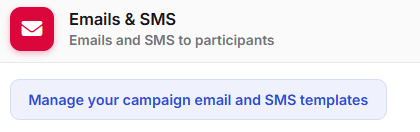
1) Go to the 'Emails & SMS' section of your campaign edition > 'Manage your campaign email and SMS templates'.
2) Add a new email template.
3) Customize the template: subject, sender's name, sender's email address, message body...
It is important that, in the email you configure, you include the text {{{ validate_email_url }}} or {{{ validate_email_link_tags }}}. We will replace the variable with the actual link that participants will need to click to validate their email.
4) Check the automatic delivery option.
5) Select the event 'Pending email validation'. In this way, the email will be sent to the user after completing the participation form.
To configure your email, you can refer to the tutorial How to email your campaign participants.
2.2. Enable phone validation.
In the 'Entry form' section of your campaign edition:
1. Check the following options:
- Phone
- Required field
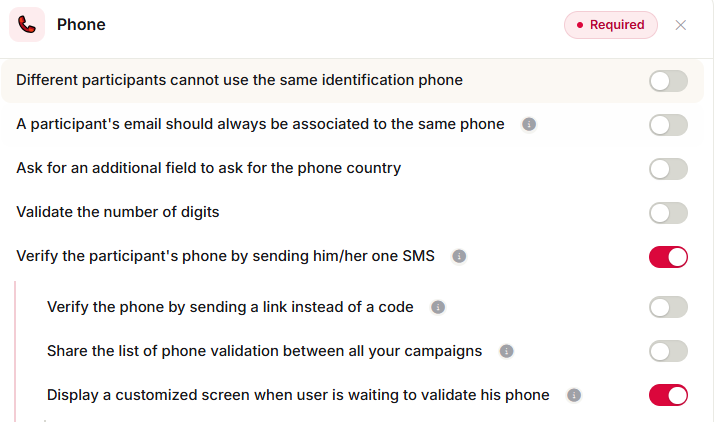
- Verify phone number with a validation SMS
By default, the SMS will send a verification code. Optionally, a verification link can be configured, but this option is available on request and is not recommended, as SMS messages with links may be detected as spam by Google/Apple.
As with email, you can enable the option "Share the validated phone list across all your campaigns", but it is not enabled by default. With this option, if a user participates in a campaign using the phone number '655000000' and validates it via SMS, if they later participate in another campaign using that same number, we will consider it valid and they will not receive the validation SMS.
2.2.1. Message when the SMS is pending validation.
When validation is activated, the participant will see a message indicating that their phone number is pending validation and that they must complete it from the message they have received.
Below, you can see the default message.
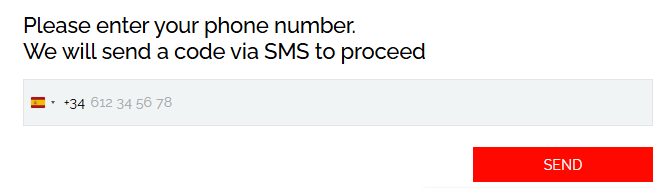
You can edit and customize this screen to display another message. To include your own message, check the 'Content for users who need to validate their email' box and add your message in the text editor.
2.2.2. SMS received by the participant.
The participant will receive an SMS informing them that they must verify their phone number in order for their participation to be considered valid. It will contain a verification code and a default message, which you can see below.
Customize the message
If you prefer, you can configure a personalized message.
Go to Emails & SMS > Manage sending in your campaign.
Add a new template and configure the subject, sender, and message body, including the variable {{{ email_phone_verification_code }}}.
Enable automatic delivery and select the event: When the email or phone is pending validation. In this way, the message will be sent automatically after the participant completes the form.
2.3. Participant flow.
The flow a participant follows after completing the form with email or phone validation is as follows:
They fill out the data form.
-
The system verifies whether the data (email or phone) requires validation:
If it was already validated in a previous campaign (and the share list option is active), the participant moves directly to the next step.
If it has not been validated, the verification message (code or link) is sent to the indicated email or phone number.
The participant receives the validation message.
-
They access the validation page:
Code: enter the received code and confirm the data.
Link: click on the verification link.
Once validated, their participation is considered complete and, if applicable, the rest of the campaign flow is activated (final screen, Instant Win prize, etc.).
2.4. Verification management.
When a participant validates their email or phone in a campaign, the system distinguishes the different participation scenarios for verification:
-
First participation:
- The system marks the email or phone as verified.
- This indicates that the user has correctly completed the validation process.
Subsequent participations with the same email or phone. If the user participates again using the same email or phone, the system automatically recognizes it as already verified.
Deleting participants:
When a participant is deleted, their validation records are also deleted.
This ensures that, if you run campaign tests, emails or phone numbers are not automatically validated, and you can start from scratch.
3. Other specifications.
Please note that this anti-fraud mechanism affects the functioning of some campaign types:
In Instant Win campaigns, where prizes are distributed automatically, the prize will be assigned when the user validates their email, not when they fill out the participation form (as usual). For example: if the prize is set to be awarded at 3:00 pm and a user participates at 2:55 pm, completes their details and validates their email at 3:00 pm (or in the next minute), if no other participant validates their email first in the winning minute, they will be the winner.
- If the campaign is moderated, when a user validates their email, their participation does not automatically become public but remains pending moderation by the administrator.
The "Thanks for participating" email configured by the administrator will not be sent when the participant fills out their details, but when they finish validating their email.
-
If it is a code validation campaign, the data validation check is performed both at participation and at validation. For example:
User A uses the correct voucher CUPON1 and receives the validation email, but has not validated it yet.
User B uses the correct voucher CUPON1. The system will allow them to use it because User A has not yet validated their email. User B validates their email.
When User A goes to validate their email, since CUPON1 has already been used by User B and validated, User A will see a message saying that this voucher has already been used and that they will need to participate again with another one.
In addition:
We recommend enabling this feature, especially in campaigns with anonymous login, where participants do not register via a social network but enter their email or phone directly. If you do not configure verification, the same user could participate with fake emails countless times.
Before activating email verification, check the total number of emails you have available in your plan.
If you have any questions, contact us at help@cool-tabs.com.
4. Related content.
Anti-fraud system for your campaigns.
Best practices for Instant Win campaigns.