
1. Introduction.
In your campaigns, you have the option to show sharing options for social media and other online channels.
In this way, when participants complete their participation, they will be able to share your campaign in different channels by clicking on a 'Share' button, helping it go viral.
As we will show you below, the share button can be displayed on the landing page and/or on the final screen. In addition, the messages displayed when the participant shares the campaign are customizable.
2. Step by step.
2.1. Where to configure the go viral options.
Once you have configured the design and content of your campaign, go to the 'Go viral' section of the campaign edition.
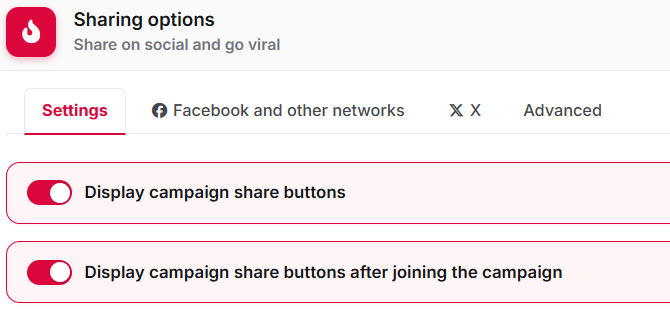
In the 'Settings' tab, you can set where the 'Share' button will be displayed: on the landing page, on the "Thank You" page, or on both. You can also enable a popup with a message inviting participants to follow your social media profiles.
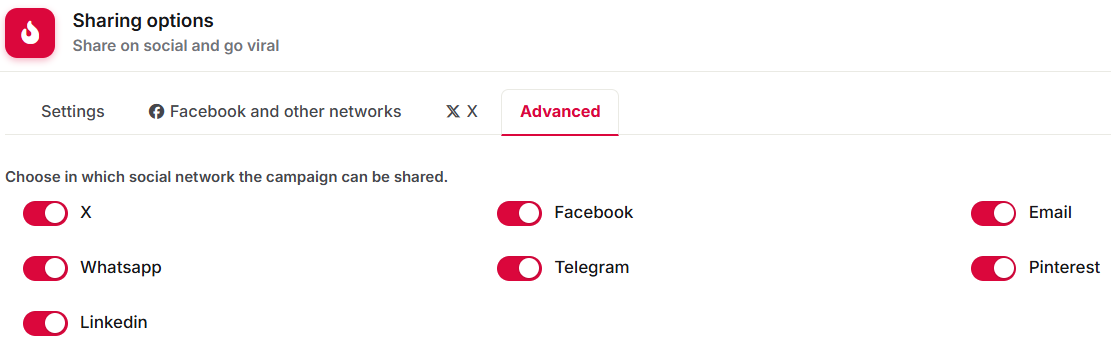
In the 'Advanced' tab, you can determine on which social networks or channels it can be shared: Twitter/X, Facebook, Email, WhatsApp, Telegram, Pinterest, and LinkedIn.
In the 'Facebook and other networks' tab, you can customize the posts to be shared. And in the 'X' tab, you can customize the post to be shared and associate an X account to those posts. See the tutorial on How to customize the messages to be shared on Facebook, X, and other social networks.
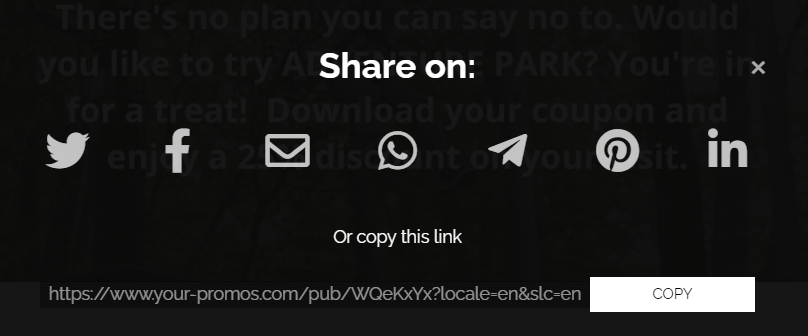
Below, you can see an example of the popup that opens with the sharing options when the user clicks on the 'Share' button.
3. Other specifications.
The viral sharing options are available on the Gold and Diamond plans.
If you have any questions, contact us at help@cool-tabs.com.
4. Related content.
How to customize the messages to be shared on Facebook, X, and other social networks.