
1. Introduction.
When you create a questionnaire or survey with Cool Tabs, you have the option to enable automatic question advancement. This way, when the participant selects an answer, the next question is automatically displayed, without having to click on the 'Next' button.
Note that this option is only available for 'Select only one answer' type questions.
2. Step by step.
To enable this functionality, go to the 'Quiz' section of the campaign editor > Quiz settings.
Once in that section, in the 'Advanced' tab, check the box 'When a user answers a question, the next one will be displayed automatically'.
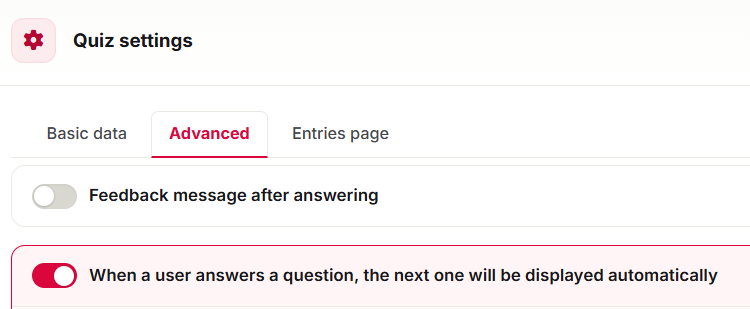
Finally, don't forget to click 'Save' so you don't lose the configuration.
3. Other specifications.
If your quiz includes a feedback message (to let the participant know whether their answer was correct or incorrect), you can combine it with automatic advancement. In that case, a 'Seconds to wait' option will appear, giving the participant time to read the feedback before the next question is displayed. If you don't want questions to advance automatically when feedback is shown, leave this box unchecked.
If you have any questions, contact us at help@cool-tabs.com.
4. Related content.
How to create a Knowledge or Trivia Quiz.
How to create a Personality Quiz.
What types of questions and answers you can include in a quiz or survey.