
1. Introduction.
With Cool Tabs, you can create a fully customizable skill game, in which players must find the differences between two seemingly identical images.
Challenge participants to spot, in the shortest time possible, the differences between two images of your choosing — one of which you'll have previously modified or removed some objects or details from.
There's no limit to the number of differences: mark as many as you need. You can also assign points for spotting differences, for completing the game, or for the seconds left over. And to prevent participants from clicking randomly, you can deduct seconds for each incorrect click.
2. Step by Step.
2.1. Create your campaign.
First, create your campaign and configure the basic settings. Is this your first time creating a campaign with Cool Tabs? The tutorial below shows you how to configure the basic sections of a campaign, along with other recommended settings to ensure it works properly and maximize results.
How to get started creating a campaign: basic settings.
If you have any questions along the way, contact us at help@cool-tabs.com.
2.2. Configure the game.
After completing the basic sections, go to the "Gamifications" section, enable the "Spot the Differences" option, and click "Configure".
Once inside the settings, fill in the fields related to the game's mechanics and design.
2.2.1. Main configuration.
Upload the game images:
On the left (image 1), add the original image.
On the right (image 2), add the image you've modified.
After uploading the images, click "Save".
The images must be square and in PNG format, with a minimum size of 620 x 620px and a maximum of 1280 x 1280px.
Once you've uploaded and saved the images, mark the differences: click on the original image at each point where a difference is located, and it will be marked automatically on the modified image. To remove or change a difference, click on the mark again to delete it. Save the changes you make.
2.2.2. Game conditions.
Time. Set the maximum time participants have to find the differences.
Points. Set the points awarded for each difference found, for completing the game, and for each second remaining when the participant finishes.
Deduction for mistakes. You can deduct seconds each time a player clicks incorrectly.
Maximum number of plays. Specify how many times a user can play. When a game ends, a pop-up shows the points earned, the message "You have X more chances", and a "Play again" button. Once the play limit is reached, users can no longer replay — only continue.
2.2.3. Design.
You can add a title that will be shown as the header of the puzzle, and include a description (text and/or image) as a clue for participants.
Save your settings to continue editing the campaign.
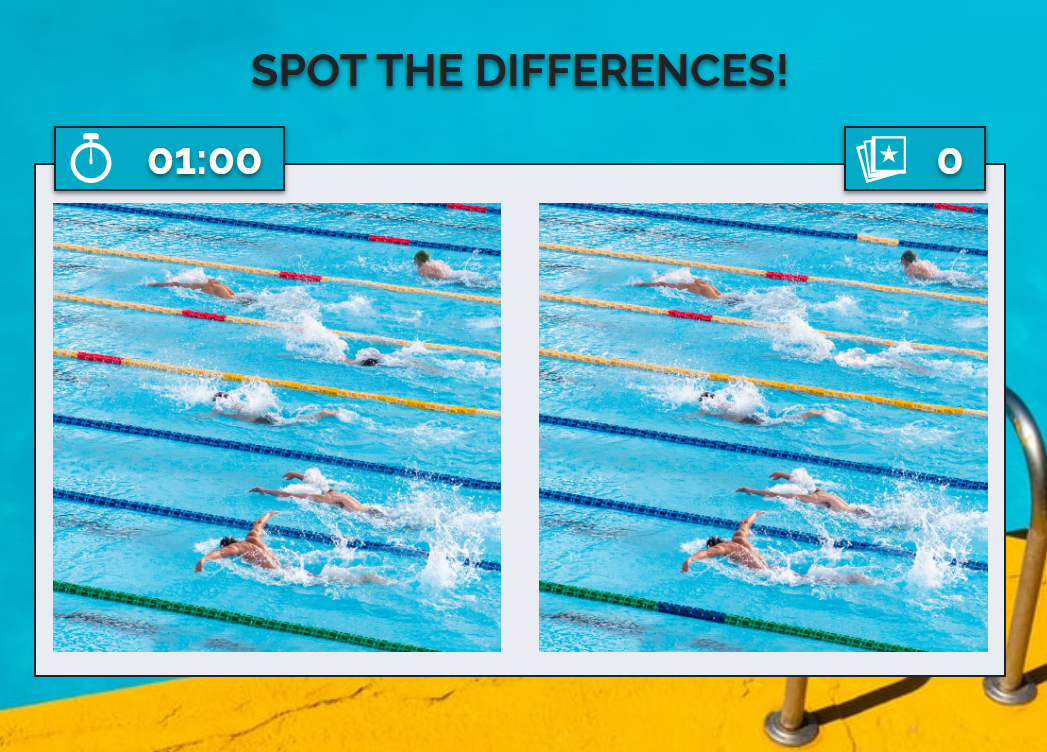
Below is an example of how the game screen looks to participants.
2.3. Other settings.
2.3.1. Ranking of participants.
In gamification campaigns where players score points, it's common to display a public list of participants, so everyone can see how they rank.
If you'd like to show a ranking of players with their points, enable the participants list.
To enable the public ranking, follow the steps in How to display a public entries list or ranking of participants.
2.3.2. Winner selection.
If your game is linked to a sweepstakes, you can select winners once the participation period ends.
You can choose winners randomly or by filtering by different conditions — for example, by points earned in the game.
The participants list shows each participant's data along with their total points.
To start the selection process, follow the tutorial How to select winners and obtain your Certificate of Validity.
3. Other specifications.
The Cool Promo and Cool Promo White Label apps, included in the Gold and Diamond plans respectively, allow you to set up a Spot the Differences game.
You can also try it with the 7-day free trial, which lets you test any of our plans.
If you have any questions along the way, feel free to contact us through the chat on our website or by email at help@cool-tabs.com.
4. Related Content.
Comments
0 comments
Please sign in to leave a comment.