
1. Introduction.
In Cool Tabs you can restrict the number of users who can select each answer option in a quiz, by setting a maximum number of participants for each final screen. When the quota for an option is reached, users who select it will not be able to complete their registration and will have to choose another option.
If you only need to limit the total participation in the campaign so that only a specific number of users can participate, check the tutorial How to restrict participation in a campaign.
TRY DEMO WITH LIMITED FINAL SCREENS
2. Use cases.
The most common use case is event registration (course, workshop, presentation, guided tour…), where there are a limited number of places for each available day or time slot. For example:
- Option 1. Saturday 1 (10:00 - 12:00) - 25 places
- Option 2. Saturday 1 (12:00 - 14:00) - 25 places
- Option 3. Sunday 2 (10:00 - 12:00) - 25 places
- Option 4. Sunday 2 (12:00 - 14:00) - 25 places
But this feature can be applied to any campaign where you want to control how many users reach a specific result based on their choice:
- Prize selection: the user chooses between several prize options, each with a limited number of units.
- Offer segmentation: depending on the type of product or service they are interested in, the user is shown a different offer or coupon, with stock controlled per option.
- Sample or product reservation: the user selects what they want to try, and the number of available reservations per option is limited.
- Group or shift assignment: useful for training dynamics or internal activations where there is a capacity limit per group.
3. Configuration.
Bear in mind that, before limiting the number of participants for each final screen, from the 'Quiz' section of the campaign editor, you must configure a personality quiz (simpler than a points-based one) with the different answer options that users will be able to select, and assign a category to each answer option.
If you have any doubts when setting up the quiz, check the tutorial How to create a personality quiz.
In our example:
- Option 1. Saturday 1 (10:00 - 12:00) - Category A
- Option 2. Saturday 1 (12:00 - 14:00) - Category B
- Option 3. Sunday 2 (10:00 - 12:00) - Category C
- Option 4. Sunday 2 (12:00 - 14:00) - Category D
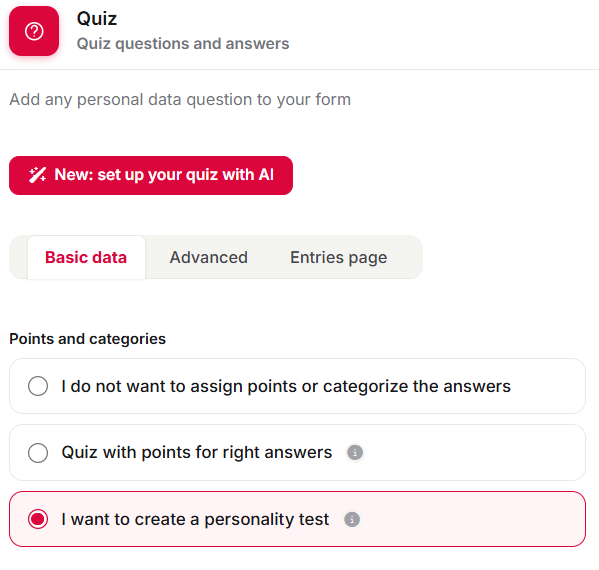
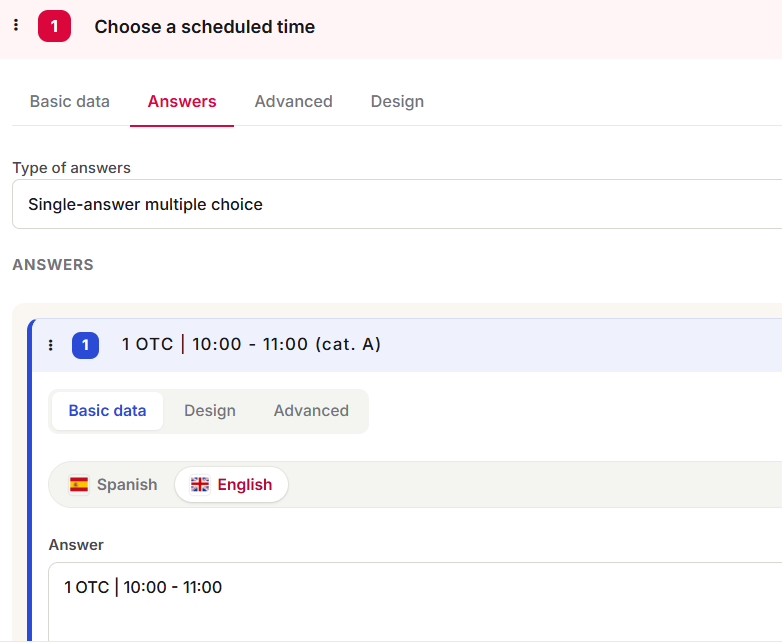
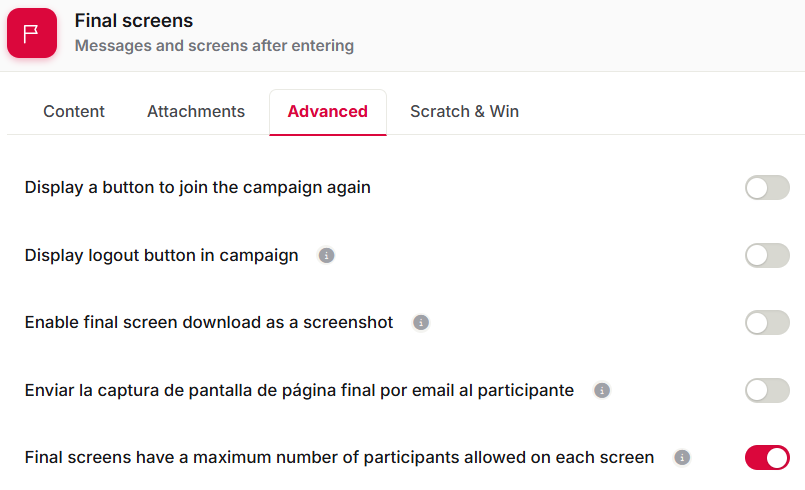
Then, go to the 'Advanced' tab of the 'Final Screen' section and check the option 'Final screens have a maximum number of participants allowed on each screen'. When you configure the individual final screens, you will see the option to set the maximum number of participants for each screen.
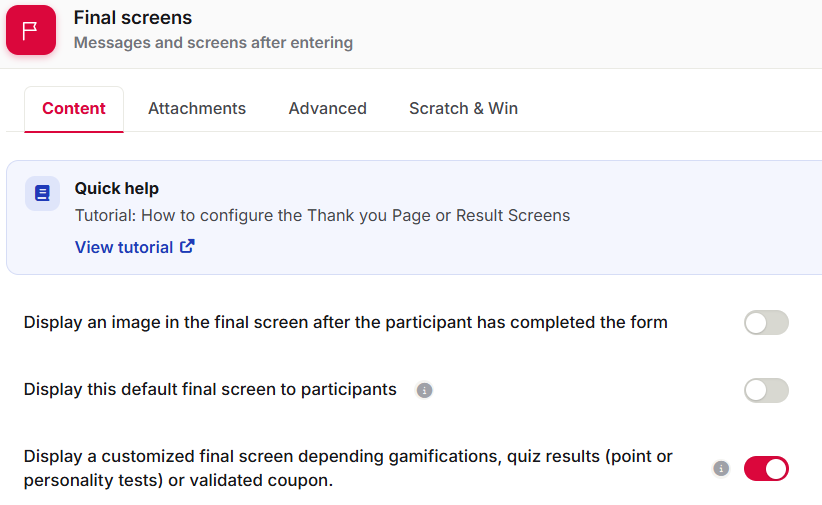
Finally, you must configure each of the final screens of the campaign, which are associated with each answer/category of the quiz. To do this, go to the 'Content' tab of the 'Final Screen' section and click on 'Individual final screens management'. Add as many final screens as there are answer options in the registration quiz.

On each screen, you must:
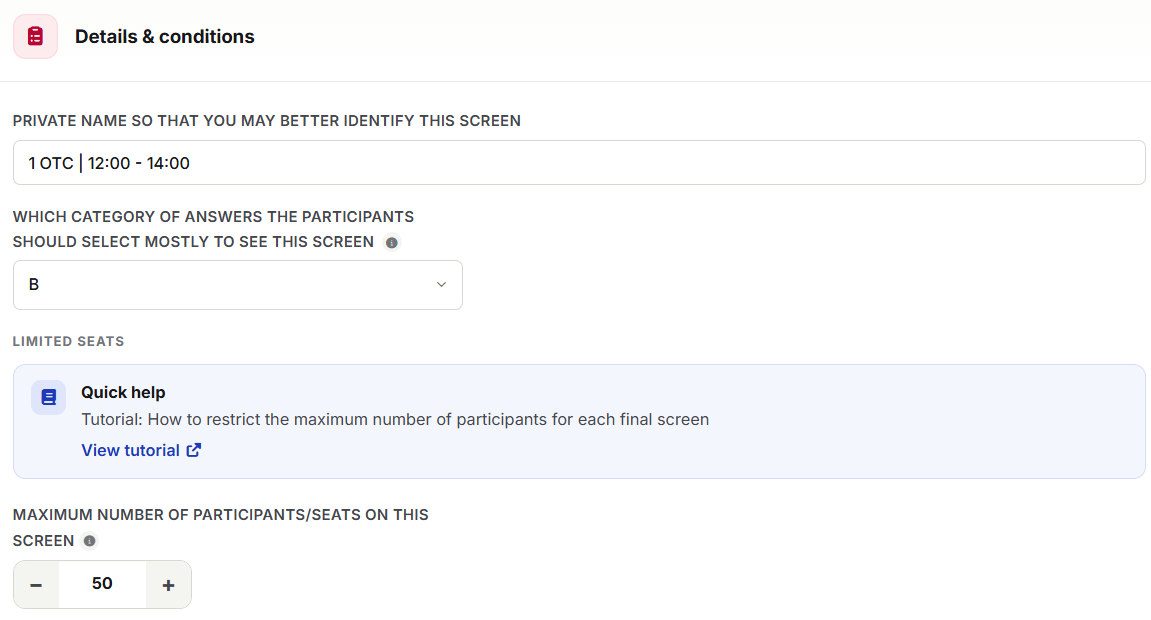
- Give a name to internally identify the screen.
- Establish which answer category the screen is associated with, so that when users select it and complete the data form, they are shown this screen and not another.
- Determine the maximum number of participants per screen. When the quota is reached, participants will no longer be able to complete the registration for that option. They can try another one if there are still places available.
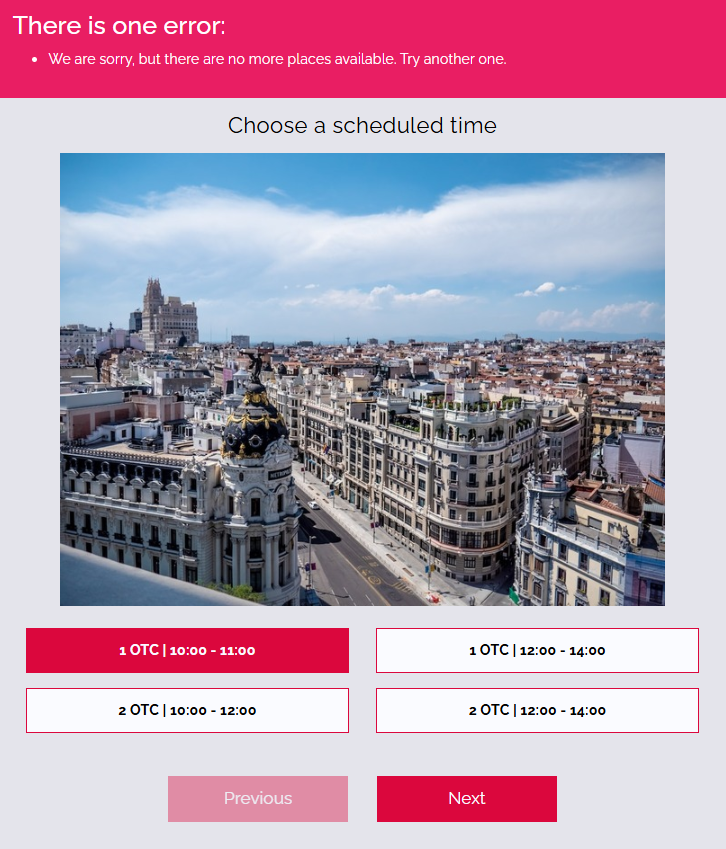
- Write a custom message to be shown to users who select an answer option for which there are no more places left. When a user fills in the form and selects an answer option associated with a full final screen, the error message is displayed.

Bear in mind that if the registration is not completed, the data filled in by the user will not be saved.
4. Other specifications.
If you have any questions, contact us at help@cool-tabs.com.
5. Related content.
How to create a personality quiz in Cool Tabs.