
1. Introduction.
The mechanics of your campaign can include the delivery of a downloadable document to winners or participants. With Cool Tabs, you can share one or several different documents with all participants or just some of them.
Once the participant has completed the campaign, a thank-you or results screen is displayed. You can configure that screen so that participants can download a file you have previously uploaded.
In this way, you can distribute a coupon, discount code, or any other document or additional information to users.
2. Ideas and examples.
You can use this mechanic if:
- You want to deliver discount coupons or additional content to all participants in your campaign. An option you can use to reward your customers or followers, for example, for completing a satisfaction survey or after signing up for your course.
- You have set up a points-based quiz and want to offer discounts or additional content only to participants who have reached a certain score. This is a great option if you create a test about your brand or business, rewarding the users who know your brand best and score highest.
- You have created a personality quiz and want users to have access to one type of discount or additional content or another depending on the result obtained. This way, you can distribute discounts or other content to your customers or potential customers based on characteristics or conditions that match the personality quiz results.
- You have set up an Instant Win campaign and want to give discounts or additional content only to the winners.
3. Step by step.
The setup of this functionality will depend on the type of campaign you create and who you want to receive the downloadable files.
3.1. Decide who will download the files.
A) All participants in your campaign.
B) Quiz participants only (points-based or personality quiz), depending on their answers (score or resulting category).
C) Instant Win winners only.
For all of the above options, you will first need to create a campaign available in the Gold and Diamond plans of Cool Tabs.
Configure the basic aspects of your campaign. If it's your first time with Cool Tabs, check the following tutorial with the recommended settings to ensure it works properly and maximize results. How to get started on creating a campaign: basic settings. If you have any questions, contact us at help@cool-tabs.com.
3.1.1. Download for all participants.
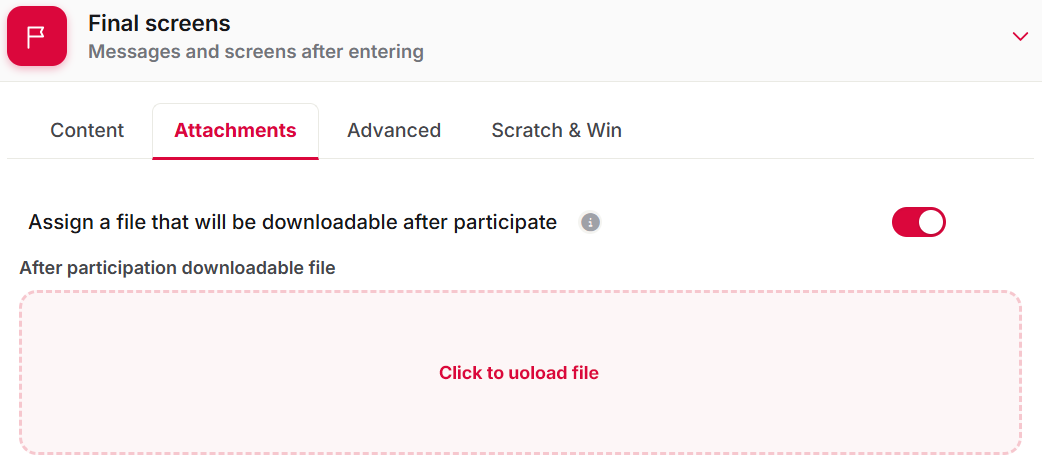
1) Go to the 'Final Screen' section > 'Attachments' tab in the campaign editor.
2) Check the option 'Assign a file that will be downloadable after participation'.
3) Upload the file you wish to distribute.
3.1.2. Download for participants based on their answers (points-based or personality quiz).
1) Go to the 'Final Screen' section of the campaign editor.
2) Check the box 'Display a customized final screen depending on gamifications, quiz results (points-based or personality quiz) or validated coupon'.
3) Click on the 'Individual Final Screen Management' button.
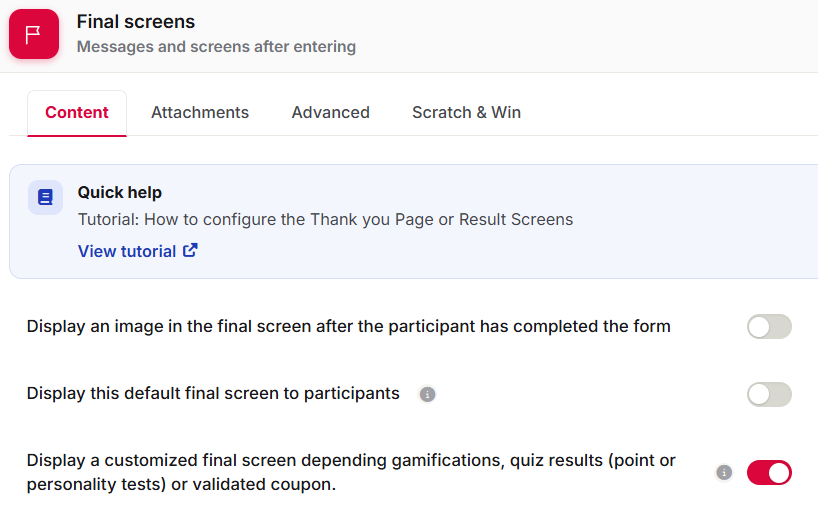

A window will open in which you can add as many screens as quiz results there are.
In the 'Design' section, under 'After participation downloadable file', select the option to assign a new file to these participants. If you do not want a downloadable file to be shown to that group of participants, enable the option 'Don't use any file'.
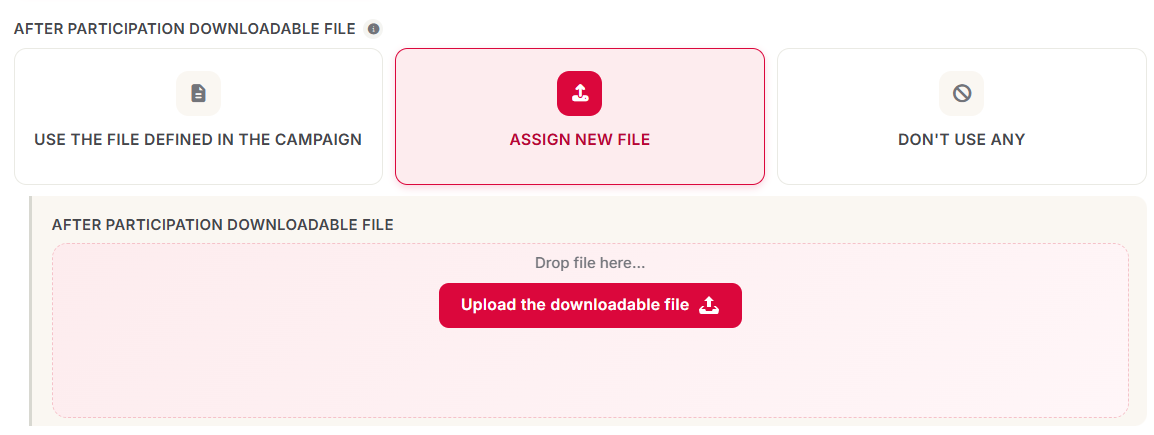
Repeat this process for each screen you add, depending on whether you want to give a downloadable file to participants who have reached X points or obtained X category in the personality quiz.
3.1.3. Download for Instant Win participants.
1) Go to the 'Instant Wins' section of the campaign editor.
2) Check the 'Automatic selection of winners via Instant Win' checkbox.
3) Click on the 'Individual Instant Wins Management' button.
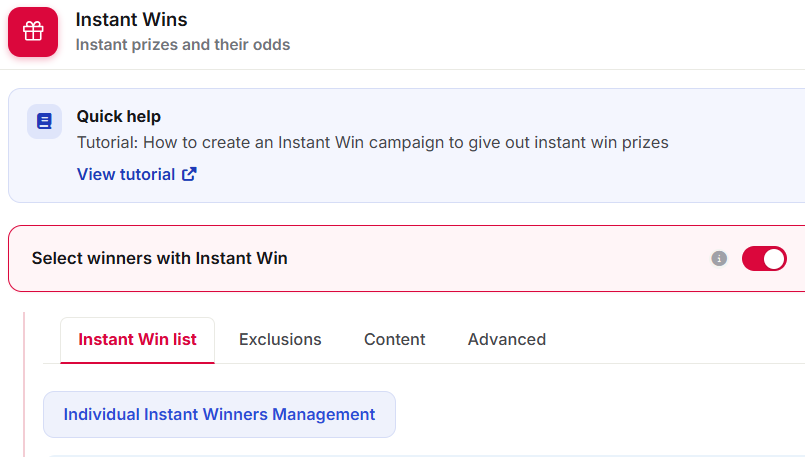
4) A window will open from which you can add winners as prizes are distributed.
In the 'Design' section, under 'After participation downloadable file', select whether you want to give these participants the same file already uploaded in the default message for all participants (see point 3.1.1) or a different one. If you do not want the winner to see the downloadable file, enable the option 'Don't use any file'.

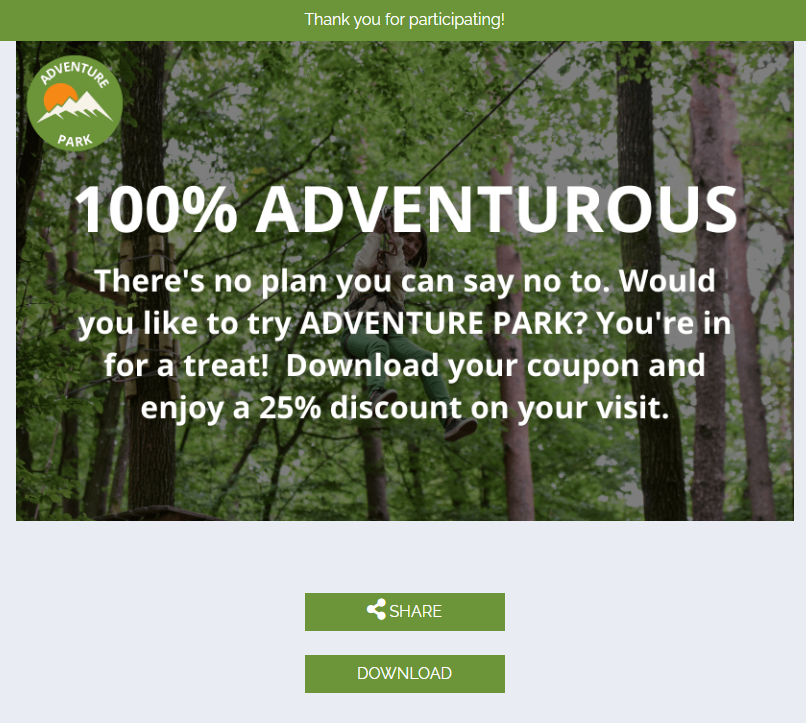
Once users finish their participation, they will be able to download the file on the final screen.
The following image is an example of how users see the thank-you screen with the download option, in this case, after participating in a personality quiz.
4. Other specifications.
Bear in mind that the file types you can upload to Cool Tabs are images and PDF documents, with a maximum size of 10 MB.
If you need to upload another type of file or a larger one, contact us at help@cool-tabs.com.
5. Related content.
How to create a campaign to distribute discount coupons.
How to create a campaign to validate promotional codes.
How to create a Scratch & Win campaign to give away instant prizes.