
1. Introduction.
With Cool Tabs you can create campaigns with phases or stages, which allows you to divide user participation into distinct time periods. For each phase, you can define its duration in hours and the number of times users can participate.
It is important to understand how phases are counted to avoid confusion and ensure that the configuration fits the needs of your campaign.
2. Ideas and examples.
An Advent Calendar. A Christmas campaign where daily prizes are given out and users can participate every day to win.
A predictions contest or sweepstake. For example, during a football World Cup, to challenge users to make their predictions on match results. Users can access the campaign to make their picks for each round.
3. Step by step.
3.1. Create your campaign.
First, create your campaign and configure the basic settings. If it's your first campaign with Cool Tabs, the following tutorial shows you how to configure the essential sections and other recommended settings to make it work well and get better results.
How to start creating a campaign: basic settings.
If you have any questions, contact us at help@cool-tabs.com.
3.2. Define the phases.
To configure the phases:
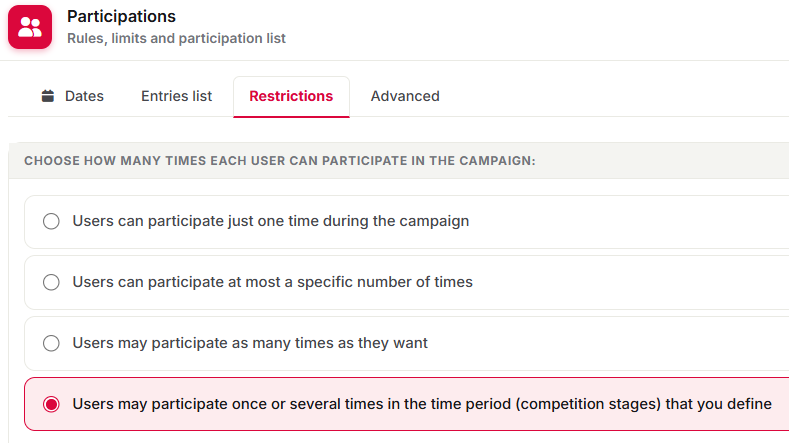
- Go to the 'Restrictions' tab within the 'Participations' section.
- Enable the option 'Users will be able to participate 1 or more times in each time period you define'.
3.3. Define the hours and number of times.
Once you enable the phase participation option, the following fields will appear:
- Hours per phase: Define the duration of each phase in hours (e.g. 24 for one day, 168 for one week, 720 for one month).
- Times a user can participate per phase: Set the participation limit per phase. If you leave this field blank, users will only be able to participate once per phase.

3.3.1. Key considerations.
1. Each phase starts counting from the participation start date.
2. An important aspect that can cause confusion is the following: participation is limited by phases, not by the number of hours each phase lasts.
That is, if you configure a campaign with phases of 168 hours (7 days), that does not mean a user can only participate once every 168 hours. It means they can participate once per phase, regardless of how many hours have passed since their last participation.
3. Example:
Imagine you configure a campaign with weekly phases of 168 hours and the campaign starts on Monday, June 3rd at 09:00. The phases would be:
- Phase 1: from June 3rd at 09:00 to June 10th at 08:59
- Phase 2: from June 10th at 09:00 to June 17th at 08:59
- Phase 3: from June 17th at 09:00 to June 24th at 08:59
A user participates on Sunday, June 9th at 15:00, within phase 1. That same user will be able to participate again on Monday, June 10th at 09:00, when phase 2 begins.
Even though only 18 hours have passed between both participations, the user can participate again because the phase has already changed.
This behavior is the same regardless of the phase duration you configure, such as 24 hours. The key is to understand that: a user can participate once per phase, not once every X hours.
This is especially useful when you want users to be able to participate every day (24h phases), every week (168h), or in any other period that fits the logic of your campaign.
4. If you decide to modify the phases after launching your campaign, it is essential to adjust the participation start date to ensure a smooth experience for users.
For example, in a World Cup predictions contest, during the group stage and round of 16, matches are played daily. In this case, you could configure 24-hour phases, allowing users to participate once a day. However, when the quarter-finals arrive, matches are less frequent, usually played over 3 days, so you might opt for 72-hour phases.
To implement this change correctly, you not only need to adjust the phase duration to 72 hours, but also update the participation start date to coincide with the beginning of the new phase. This way, you ensure users can continue participating without any issues.
3.3.2. Possible errors.
If an error is occurring in your phase-based campaign, check these cases:
- That the phase configuration has not changed.
- The participation start date in the settings.
- Whether there are time zone differences that could affect participation.
3.4. Show questions on specific dates.
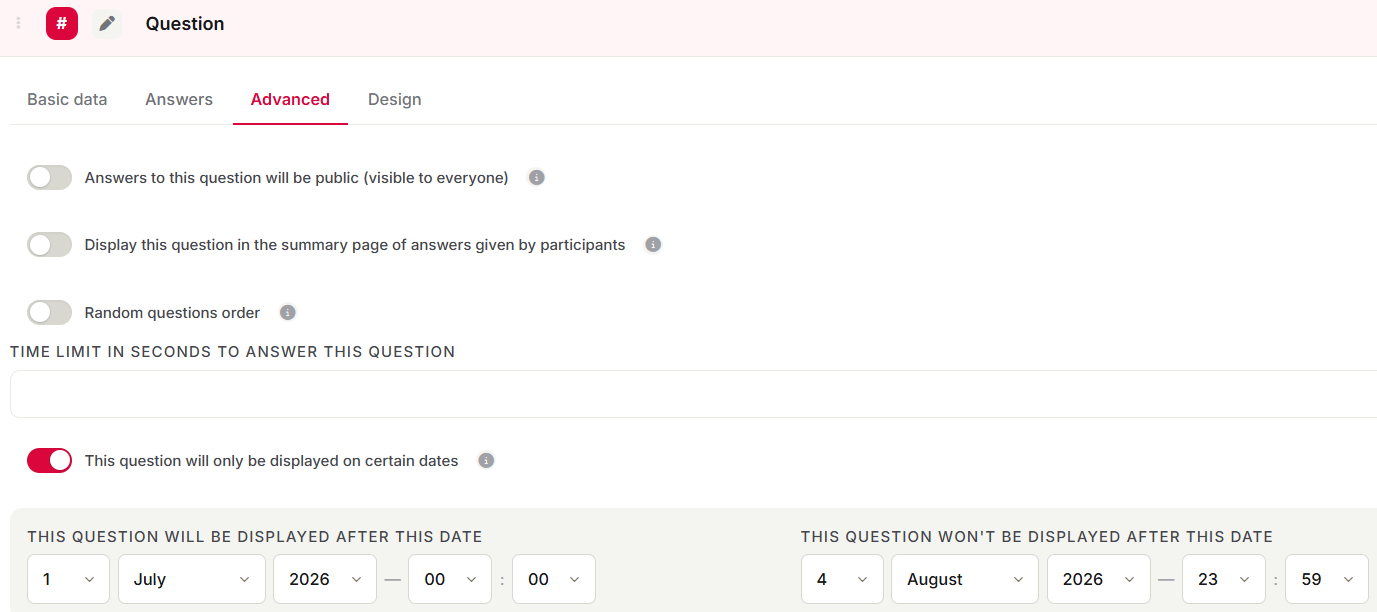
In some phase-based campaigns, you may want to show specific questions only on certain dates. This is useful in predictions contests, where questions depend on scheduled matches.
To do this:
- In the 'Settings' tab of each quiz question, enable the option 'Visible only during certain dates'.
- Define the dates during which each question will be available.
3.4.1. Previewing questions by phase in the preview.
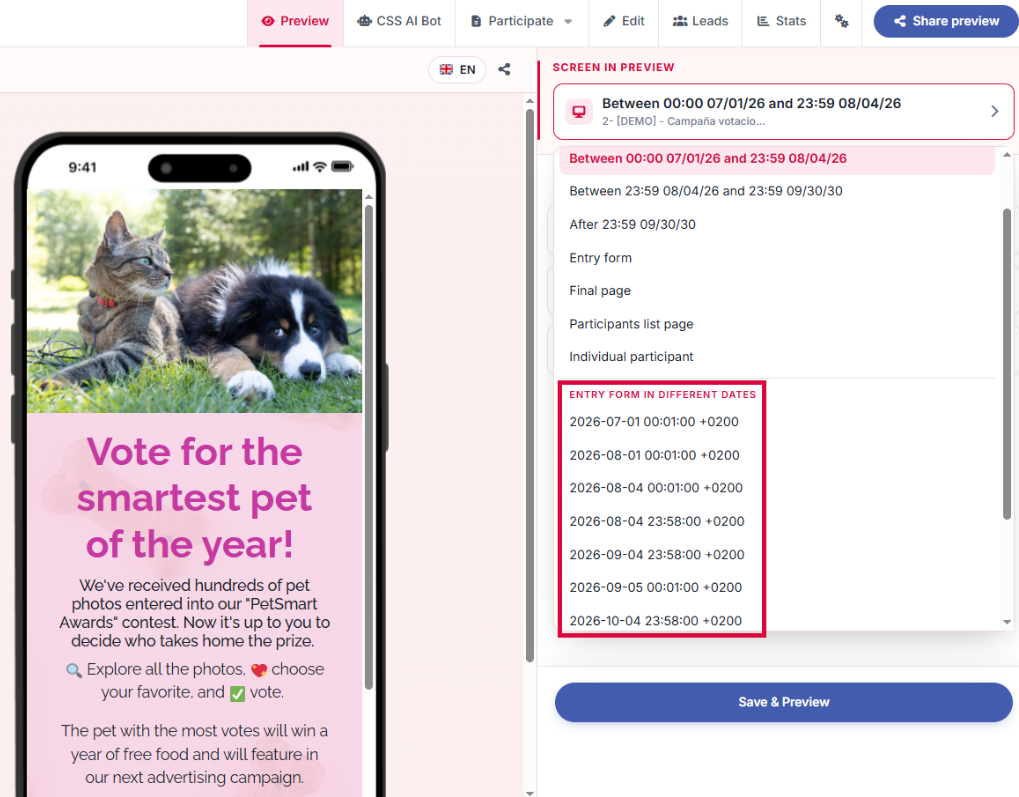
You can preview the campaign to check which questions will be shown in each phase.
4. Other specifications.
You can create a phase-based campaign on the Gold and Diamond plans.
If you have any questions, contact us at help@cool-tabs.com.
5. Related content.
Create your phase-based contest now.
How to create a predictions quiz contest.
How to create a predictions contest with sports forecast-type answers.